

5. Make a Layer Group
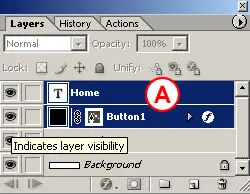
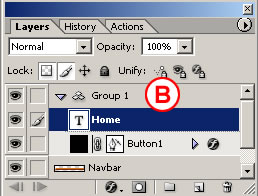
With the home type layer selected, hold the Shift key and click the button 1 layer in the Layers palette, so that both layers are selected A. Then choose Layer>Group Layers from the main menu bar. This gathers the two layers into a layer group labeled Group 1 B. Now that the button and text are grouped, it will be easy to duplicate them as a unit.
6. Make Duplicate Buttons
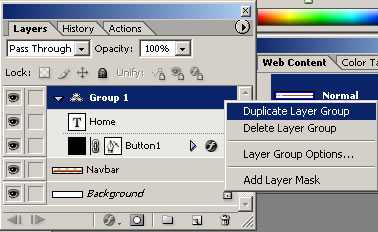
Duplicate button 1 along with its text by Control/right-clicking Group 1 in the Layers palette and choosing Duplicate Layer Group from the menu that appears in following image. You won't see the duplicate button in the image yet because it is located directly on top of the original button.
TIP: Selecting Multiple Layers.
You can select more than one layer at a time-but only in ImageReady, not Photoshop. To select multiple layers, Shift-click if the layers are next to one another in the Layers palette; Command/Ctrl-click if they are not.
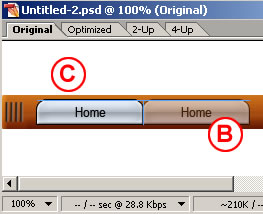
Select the Move tool, and make sure its Layer Select tool variation is highlighted in the Options bar. Click on the button in the image and drag to the right to move the duplicate button and its text B.
Notice the light blue lines that appear and disappear as you move the button C. These are Smart Guides-temporary alignment guides that display automatically when you move an object. Use them to align the buttons horizontally as you drag. Release the mouse when a vertical Smart Guide appears in between the two buttons, indicating that they are no longer overlapping.
Layer Groups vs. Layer Sets.
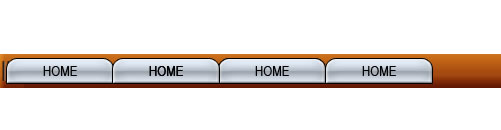
ImageReady layer groups are similar to layer sets, but more useful for working with objects, because of the way layer groups react to the Move tool variations-the Layer Select tool and the Direct Select tool. If an object is on a layer that's included in a layer group, clicking on the object with the Layer Select tool selects the entire layer group, while clicking with the Direct Select tool selects only the layer. If an object is on a layer that's in a layer set, both tools select the layer, but not its set.Repeat this step five more times until you have a total of seven layer groups and seven buttons, all displaying the label home D.
7. Change the Button Text
Select the Type tool and click and drag to highlight the word home on the second button from the left. Type the word Info instead. Repeat this step on each button, renaming the next five buttons: tours, stories, pictures, booking, and links.

8. Edit Multiple Layers at Once
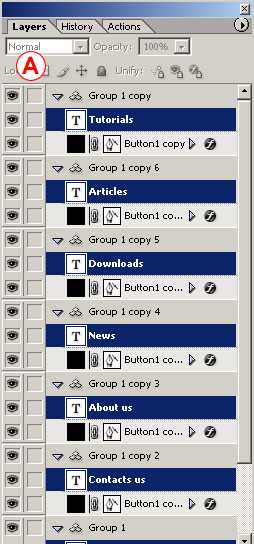
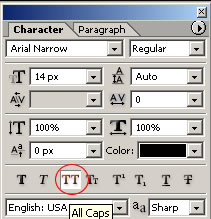
You can save time by editing multiple layers together. Command/Ctrl-click on each of the seven type layers in the Layers palette to select them all A. Open the Character palette (Window>Character). With the Type tool selected, click the All Caps icon in the Character palette to make all the button labels uppercase.
9. Align Text to Buttons
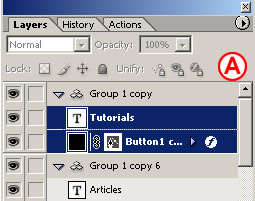
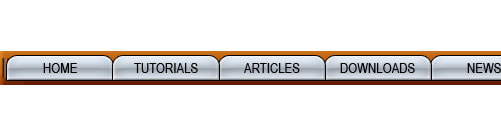
Now align each text label to its button. Start with the home button. Shift-click the home type layer and the button 1 layer to select them both in the Layers palette A. Select the Move tool in the Options bar. Click the Align Layer Horizontal Centers button to move the text to the horizontal center of the button B. Then click the Align Layer Vertical Centers button to move the text to the vertical center of the button C. Repeat this step on each of the six remaining pairs of button and text.

(source: brainbell.com)


