Freebestoffers


IndoBanner Exchanges

October 19, 2008

Adobe Photoshop - Building a Navigation Bar (2)

5. Make a Layer Group

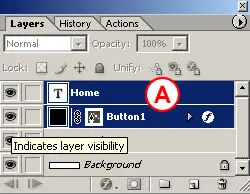
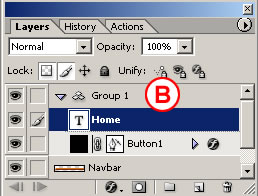
With the home type layer selected, hold the Shift key and click the button 1 layer in the Layers palette, so that both layers are selected A. Then choose Layer>Group Layers from the main menu bar. This gathers the two layers into a layer group labeled Group 1 B. Now that the button and text are grouped, it will be easy to duplicate them as a unit.
Make a Layer Group in ImageReady

Make a Layer Group in ImageReady

6. Make Duplicate Buttons

Duplicate button 1 along with its text by Control/right-clicking Group 1 in the Layers palette and choosing Duplicate Layer Group from the menu that appears in following image. You won't see the duplicate button in the image yet because it is located directly on top of the original button.
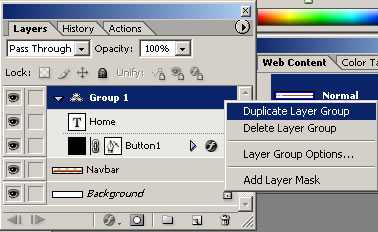
Duplicate Layer Group in ImageReady


TIP: Selecting Multiple Layers.

You can select more than one layer at a time-but only in ImageReady, not Photoshop. To select multiple layers, Shift-click if the layers are next to one another in the Layers palette; Command/Ctrl-click if they are not.
Select the Move tool, and make sure its Layer Select tool variation is highlighted in the Options bar. Click on the button in the image and drag to the right to move the duplicate button and its text B.

Notice the light blue lines that appear and disappear as you move the button C. These are Smart Guides-temporary alignment guides that display automatically when you move an object. Use them to align the buttons horizontally as you drag. Release the mouse when a vertical Smart Guide appears in between the two buttons, indicating that they are no longer overlapping.
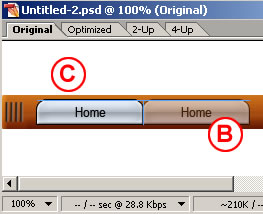
Selecting Multiple Layers in ImageReady

Layer Groups vs. Layer Sets.

ImageReady layer groups are similar to layer sets, but more useful for working with objects, because of the way layer groups react to the Move tool variations-the Layer Select tool and the Direct Select tool. If an object is on a layer that's included in a layer group, clicking on the object with the Layer Select tool selects the entire layer group, while clicking with the Direct Select tool selects only the layer. If an object is on a layer that's in a layer set, both tools select the layer, but not its set.

Repeat this step five more times until you have a total of seven layer groups and seven buttons, all displaying the label home D.
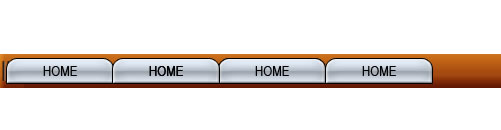
Duplicate Buttons in ImageReady

7. Change the Button Text

Select the Type tool and click and drag to highlight the word home on the second button from the left. Type the word Info instead. Repeat this step on each button, renaming the next five buttons: tours, stories, pictures, booking, and links.

Change the button text in ImageReady

8. Edit Multiple Layers at Once

You can save time by editing multiple layers together. Command/Ctrl-click on each of the seven type layers in the Layers palette to select them all A. Open the Character palette (Window>Character). With the Type tool selected, click the All Caps icon in the Character palette to make all the button labels uppercase.
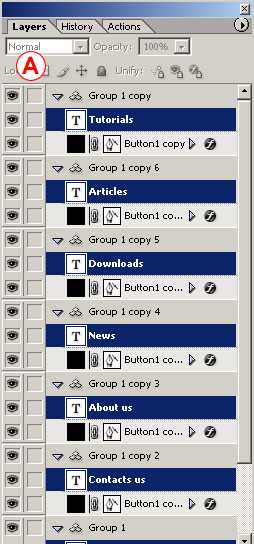
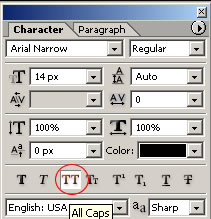
Edit multiple layers at once in ImageReady

Edit multiple layers at once in ImageReady

Note: Selecting a Type Layer. You must click directly on the word home to select the corresponding type layer so you replace that text. Otherwise you'll create a new type layer. If that happens, use the History palette to back up and try again.

9. Align Text to Buttons

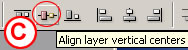
Now align each text label to its button. Start with the home button. Shift-click the home type layer and the button 1 layer to select them both in the Layers palette A. Select the Move tool in the Options bar. Click the Align Layer Horizontal Centers button to move the text to the horizontal center of the button B. Then click the Align Layer Vertical Centers button to move the text to the vertical center of the button C. Repeat this step on each of the six remaining pairs of button and text.
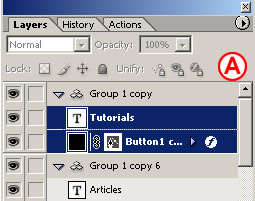

Align Text in ImageReady

Text Aligning in ImageReady

Show Transform Box in ImageReady

Complete Navigation Bar Created in ImageReady and Photoshop

Congratulations! You've created a navigation bar of matching buttons and text with a minimum of fuss. The file is still in PSD (Photoshop Document format), which is a good format in which to save the source file because it retains program features like layers. However, this image is not ready to upload to the Web, because Web browsers cannot display a PSD file. The file must first be converted to a Web-ready format, like JPEG or GIF.
(source: brainbell.com)
Adobe Photoshop - Building a Navigation Bar (1)

n this tutorial you'll learn a variety of techniques for creating visually exciting graphics that support and enhance navigation.

If you're not familiar with Photoshop then read this tutorial New file for the Web before working on this tutorial.

Navigation is the most important graphic element in a Web site. A good navigation scheme is one that is both easy to find on every page and easy to use. It communicates clearly and simply where the viewer is in the site, where she can go from that point, and how to get there.

Add a set of matching buttons to a navigation bar.

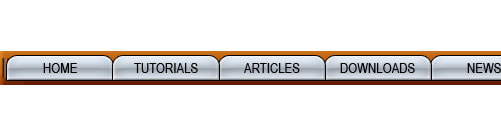
Final look of Navigation Bar

1. Switch to ImageReady

This navigation bar image was made in Photoshop to take advantage of Photoshop's wide range of image-editing features. You could continue to use Photoshop to add buttons to this bar, but we recommend you switch to ImageReady for that purpose to make use of ImageReady's exclusive object-oriented tools (the Tab Rectangle tool, Smart Guides, multiple layer selection, layer groups, Move tool variations, and more).

How to Switch to ImageReady

With the file open in Photoshop, click the Edit in ImageReady button at the bottom of the Photoshop toolbox. ImageReady launches, and the open file is automatically moved to ImageReady. You'll work in ImageReady for the rest of this project.

2. Create a Button Shape

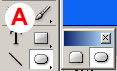
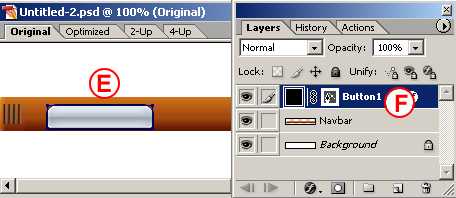
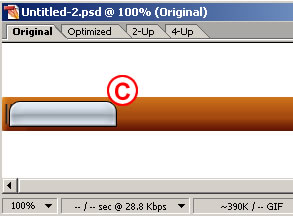
Start by creating one tab-shaped button. Select the Tab Rectangle tool in the ImageReady toolbox A. In the Options bar, make sure the Shape Layer icon is selected B. Set the button's size by checking Fixed Size and entering Width: 106 px and Height: 24 px C. Set the button's style by clicking the arrow on the Style field and choose Glass Table Cool style or just choose a different style. Select the Background layer in the Layers palette. Then click in the image to create a button on a new shape layer E. Give the layer a meaningful name by double-clicking Layer 1 and typing button 1 in its place F.

Tab Rectangle tool in the ImageReady toolbox to create a button

Tab Rectangle tool Optoin Bar to set the button properties

Create new layer for button


TIP: Turn Off Border.

You can hide the blue border that appears around your new button by choosing View>Show>Layer Edges.

3. Move the Button

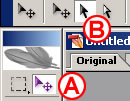
Now you'll turn the button upside down and hang it from the navigation bar. Select the Move Tool in the toolbox A, and make sure the Layer Select tool is highlighted in the Options bar B. This variation of the Move tool automatically selects the layer or layer group that contains the object you click on in the image. Click on the button you just made to automatically select the button 1 layer. Choose Edit>Transform>Flip Vertical to invert the button. Click and drag the button into position under the navigation bar's overhang C.

Move Tool in the ImageReady toolbox

Move the button using Move Tool in ImageReady

4. Add Button Text

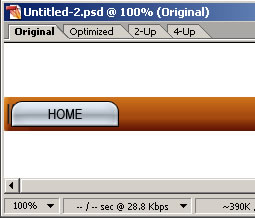
Select the Type tool in the ImageReady toolbox. In the Options bar, set Font Family to Arial Narrow or a similar font A, set Font Size to around 14 px B, and set Font Color to black C. Click on the button in the image and type home. This creates a new home type layer above the button 1 layer. Don't worry about where the text is positioned on the button for now.

Type Tool Option Bar in ImageReady

Type Tool in ImageReady

Write some text on button in ImageReady

(source: brainbell.com)
Starting a New File for the Web by Photoshop

When you create a navigation bar, a page layout, or any Web graphic from scratch, there are some important technical issues to consider up front-including image dimensions, resolution, color mode, and color profile.

You confront most of these issues right off the bat in Photoshop when you set up a new document. We help you unravel these technical mysteries here.

Image Dimensions

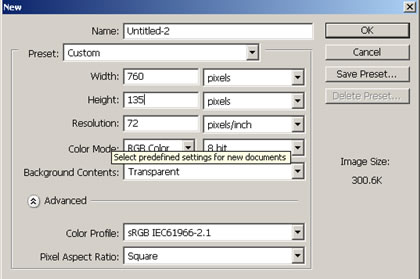
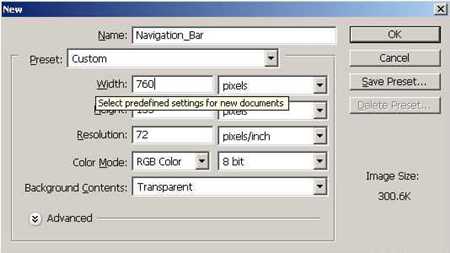
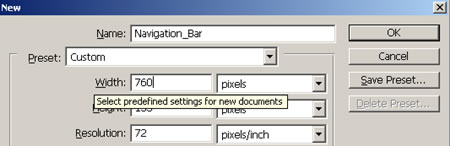
Adobe Photoshop New File

Files are measured in pixels when you design for the Web, but Photoshop's default for dialog boxes and rulers is set to inches. You can change inches to pixels throughout the program by choosing Photoshop/File>Preferences>Units & Rulers and setting the Rulers field to pixels.

Choose File>New, and enter the Width and Height of a new Web file in pixels. A navigation bar or a page layout is best viewed without scrolling, so choose dimensions for those files that will fit within a typical browser window. Unfortunately, browser window sizes vary with each viewer's monitor display settings, choice of browser, and viewing behavior, so we can't give you one foolproof file size recommendation. Many designers make their navigation bars about 760 pixels wide and their page layouts 760 x 410 pixels, assuming that today's typical monitor is set to 800 x 600 pixels (or more) and accounting for scroll bars and other browser elements.

To be more accurate, do some research to determine the platform, display resolution, and browser that your particular audience is likely to use. Take a screen shot of an open Web browser in that setup, and crop away the browser interface elements to get a measurement in pixels of the area your viewers can see without scrolling. Use those numbers to custom size Web graphics for your audience.

Resolution

Adobe Photoshop New File Resolution Settings

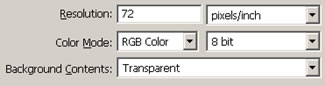
Pixels are small rectangles of color information that are the building blocks of bitmapped images. Resolution, as that term is used in Photoshop's dialog boxes, describes the number of pixels per inch (ppi) in an image. If you take our advice in the previous panel and set the dimensions of a file destined for the Web in pixels rather than inches, it doesn't matter what number is in the Resolution field of the New dialog box. Photoshop will create a file with the number of pixels you dictate-without regard for pixels per inch-just as ImageReady does automatically.

However, if you leave the Width and Height fields in Photoshop's New dialog box set to inches, it's important to set the Resolution field to 72 ppi to approximate the resolution at which images are displayed in a Web browser on a standard screen. The same is true if you're resizing an existing image for use on the Web in Photoshop's Image Size dialog box.

Note that your Photoshop settings do not control the absolute size of an image on a viewer's screen. That depends on the display size of each viewer's monitor. For example, if a viewer changes her display from 800 x 600 to 1024 x 768, each pixel becomes smaller, making the same image look smaller on her screen.

Color Mode & Bit Depth

Adobe Photoshop New File Color Mode and Bit Depth Settings

Set Color Mode to RGB Color in Photoshop's New dialog box when you are creating a file for the Web. Web browsers cannot see files in any of the other color modes offered-Bitmap, Grayscale, CMYK Color, or Lab Color.

Color mode describes the set of available colors from which an image is built. Each pixel in an RGB file is composed of a combination of red, green, and blue color values.

Bit depth is the amount of color data in each channel of color (red, green, and blue). Leave Bit Depth set to 8 bit. This creates an image with 24 bits of color information (8 bits in each of the 3 channels of an RGB image), accommodating 16.7 million possible colors.

Background Contents

Adobe Photoshop New File Background Settings

Every new file begins with a single layer. The nature of that layer depends on how you set the Background Contents field in the New dialog box. If you choose Transparent, the first layer will be composed of transparent pixels represented by a gray and white checkerboard pattern and will be a regular layer. This is the best choice if you plan on optimizing the image as a transparent GIF through which you can see a Web page background.

If you choose either White or Background Color in the New dialog box, the first layer will be a special kind of layer called a Background layer. A Background layer acts differently than a regular layer. A Background layer cannot have transparent pixels and you can't change its opacity or move its contents. You also cannot place another layer below a Background layer in the Layers palette. All of these properties can make a Background layer difficult to work with.

If you do create a Background layer and later want to change it into a regular layer, choose Layer>New Layer from Background, or double-click the layer name and enter a new name in the Layer Properties dialog box.

Color Profile

Adobe Photoshop New File Color Profile Settings

Photoshop's color management system is designed to achieve consistency in the way colors in an image appear on screen and in print. Unfortunately, most Web browsers and a number of other applications used in a Web design workflow are not color-managed. So there is no sure-fire way to achieve consistency between the way colors appear on your screen in Photoshop and the way they will appear in each viewer's Web browser.

The best solution we've found is to design an image for the Web in the sRGB color space, so that it appears much the way it would in a Web browser on a typical Windows monitor. Then save the file without embedding a color profile, since profiles can't be read by most Web browsers and needlessly inflate the file size.

To do this, when you start a new Web file, click the Advanced arrow in Photoshop's New dialog box to reveal the Color Profile menu. Choose the sRGB profile from that menu. (Alternatively, choose Working RGB: sRGB if you've already set sRGB as your RGB working space in Photoshop's Color Settings.) If you save an optimized copy of the file in JPEG format, uncheck ICC Profile in Photoshop's Save for Web window or ImageReady's Optimize palette to avoid embedding the color profile.

(source: brainbell.com)